 Utiliser les QRCodes
Pour
commencer vous devez:
1- Posséder un smartphone Android ou iPhone
2- Etre connecté au
réseau via les "Données mobiles" ou "Wifi"
3- Activer le GPS: Android: Paramétres/Localisation iPhone:
Réglages/Confidentialité/Service de Localisation
Lire les QRCodes
Installer un lecteur de
QRCode ou ScanCode sur
votre téléphone
Pour Android : Installez QRdroid ou Bookbeo ou tout autre lecteur performant
Pour iPhone : Installez Qrafter
ou ou la caméra de votre Iphone
Opérations pour "La Réunion, 152 Randonnées"
:
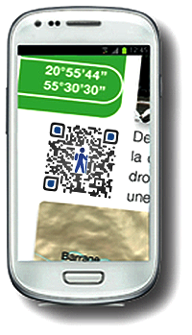
Lancez votre lecteur de
QRCode et scanner le QRcode de la randonnée dans votre
guide
Acceptez léouverture du
lien, cet écran séaffiche :
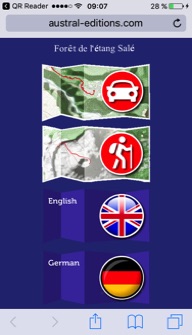
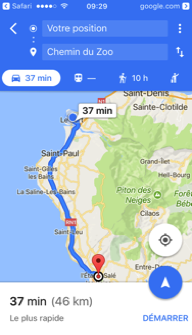
1- Bouton
Direction en voiture
Vous devez au préalable
télécharger googleMap
é partir de votre
position, GoogleMap vous indique la direction en
voiture jusqu'au point de départ de la randonnée, une option vous permet de
télécharger la direction pour une utilisation Hors ligne
2- Bouton
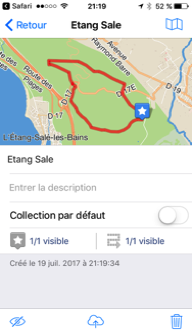
Tracé GPS
Pour Android, installez au choix : GoogleEarth,
GPXViewer, Galileo, MAPinr,
OruxMap, ou votre application de géolocalisation.
Pour iPhone, installez
au choix : GoogleEarth,
Galileo, ou votre application de géolocalisation.
En cliquant sur ce
bouton, vous activez le téléchargement déun fichier kml
dans lequel est inclus le point de départ, le point déarrivée et le tracé de la
randonnée.
En utilisant un lecteur
approprié, vous pouvez vous repérer sur une carte interactive.
3-
Boutons de traduction en Anglais
4-
Boutons de traduction en Allemand
 Using
QRCodes
Using
QRCodes
To begin,
you must:
1- Own
an Android or iPhone smartphone
2- Be connected to the network via "Mobile data" or
"Wifi"
3- Enable
GPS: Android: "Settings / Localization"
iPhone: "Settings / Privacy / Location
Service"
To read the QRCodes:
Install a QRCode or ScanCode reader on your phone
For Android:
Install QRdroid or Bookbeo
or any other powerful player
For iPhone: Install QRreader or Qrafter or any other powerful
player
Operations:
Open your QRCode reader
and scan the code of your hike
in the guide "La Réunion, 152 Randonnées"
Accept
the opening of the link, this screen
is displayed:
1-
"Direction in car" button
You must first download "googleMap"
From
your location, GoogleMap will direct you by car to the starting point
of the hike, An option allows
you to download the direction
for "Offline" use;
2-
"GPS Tracking" button
For Android,
install either GoogleEarth, GPXViewer, Galileo, MAPinr, OruxMap, or your geolocation application.
For iPhone, install either GoogleEarth, Galileo, or your geolocation application.
By clicking
on this button, you activate the download of a file in which
Is included
the starting point, the arrival
point and the route of the hike.
Using
an appropriate reader, you can
locate yourself on an
interactive map.
3-
English translation buttons
4- German translation buttons
 Verwenden
QRCodes
Verwenden
QRCodes
So starten Sie brauchen:
1- Owning
ein Android-Smartphone oder iPhone
2- Wesen
zu dem Netzwerk
ber die Mobil-Daten oder WiFi verbunden Aktivieren
3- GPS: Android "Einstellungen / Location" iPhone "Einstellungen / Datenschutz /
Location Service"
Zum
Lesen QRCodes:
Installieren
oder Scancode
QRCode Leser auf Ihrem Handy
Fér
Android: Installieren oder QRdroid bookBeo oder anderer Leistungsantrieb
Fér
iPhone: Installieren oder QRreader Qrafter
oder anderer Leistungsantrieb
Operationen
:
éffnen
Sie Ihren
QRCode Leser und scannen Sie
den Code mit Ihrem Wanderféhrer
in der éReunion, 152 Wandern
Akzeptieren
Sie den Link zu éffnen, dieser
Bildschirm erscheint:
1- Taste
éRichtung mit dem Autoé
Sie
méssen zuerst
égoogleMapé heruntergeladen
Von Ihrer
Position zeigt GoogleMap
die Richtung mit dem Auto zum Ausgangspunkt der Wanderung,
eine
Option, um die Richtung fér die Verwendung éOfflineé zum Download;
2 Taste
"GPS Trace"
für
Android, installieren Sie entweder: Google GPXViewer,
Galileo, MAPinr, OruxMap oder Standort-basierte Anwendung.
für
iPhone, installieren Sie entweder: Google, Galileo oder Standort-basierte Anwendung.
Mit einem
Klick auf diese Schaltfléche, aktivieren Sie den Download einer Datei, in der
der
Startpunkt, Endpunkt und der Weg der Wanderung enthalten sind.
Durch
die Verwendung eines geeigneten Leser, kénnen Sie
auf einer Karte lokalisieren.
3- ébersetzung Buttons
4- ébersetzung Tasten auf Deutsch